

Introduction to the Quotation Process
Quoting is the backbone of sales, giving customers a transparent breakdown of the products or services they are looking at along with pricing. In Odoo, this is made easy with the odoo quote calculator, a powerful tool to generate accurate and tailored quotes in just a few clicks. By integrating with Odoo’s apps, Sales and Documents, the quote calculator helps businesses to manage quotes efficiently, minimize manual errors and ensure every customer gets a professional and detailed quote. This will speed up the sales cycle and customer trust and satisfaction, making it easier to win new business and deliver great service.
Enable Quotation Templates
To get started with the Odoo 18 Quote Calculator, start by navigating to Sales App > Configuration > Settings. 2. Scroll down to the Quotations & Orders section. 3. Check the box to enable Quotation Templates. This activation allows you to create and use customizable templates integrated with the Odoo Quote Calculator.
Create a Quotation Template
Once Templates are enabled:
- Go to Sales > Configuration > Sales Orders > Quotation Templates.
- Click New to create a new quotation template.
- Fill in the template details:
- Title: Name your template (e.g., “Custom Furniture Quote” for a company that sells customized products such as furniture or construction services. Be sure to specify the type of product or service in the template, as this will affect calculations and pricing).
- Validity: Set how many days the quote remains valid, or leave at 0 for no expiration.
- Confirmation Mail: Optionally select an email template for order confirmation.
- Invoicing Journal: Choose the appropriate accounting journal.
- In the Quote Calculator field, enter a name for your calculator and click Create and Edit to design the linked spreadsheet.
Set Up the Quote Calculator Spreadsheet
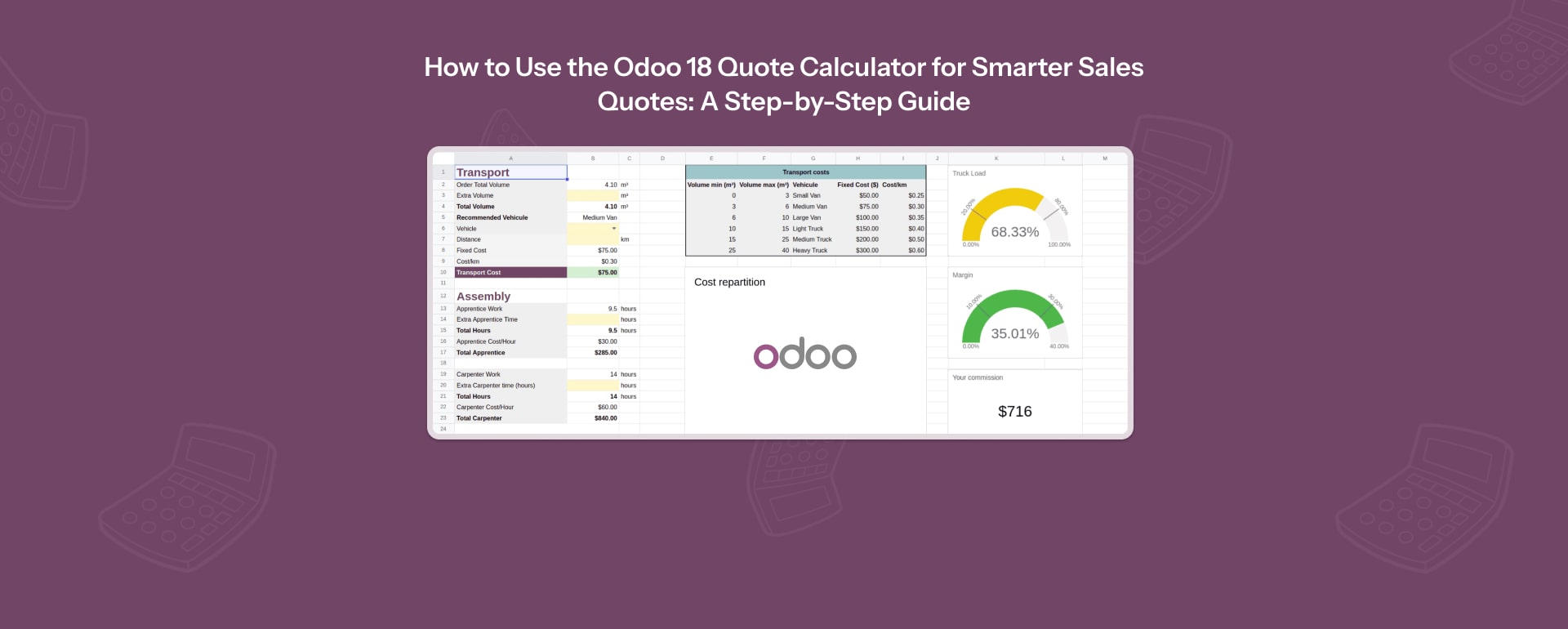
The Odoo 18 Quote Calculator uses spreadsheets as the core tool for advanced quoting, so you can have a flexible spreadsheet interface to do complex calculations:
- Configure product pricing, including price per unit, discounts and taxes.
- Add custom calculations for costs, like transportation, labor and materials, so all costs are taken into account in the quote.
- Integrate data from other Odoo apps like inventory, product details or employee planning.
- For example, a furniture business can create fields for dimensions, materials and finishes, and formulas to calculate the total price based on those inputs. The quote calculator can handle many variables and customization options, so it’s suitable for complex products and services. This powerful tool aggregates data from multiple sources and uses smart logic to calculate the price so you get healthy margins.
Understanding the Odoo Quote Calculator
The Odoo quote calculator is designed to handle complex pricing scenarios by using customisable quotation templates and dynamic data aggregation. To get started, go to the Settings menu in the Sales app, enable Quotation Templates and click Save to activate the feature. From there you can create a new quotation template which can be linked to specific products, services or customer segments. Each template can be linked to order lines so calculations are always based on the latest data.
The calculator uses Odoo’s spreadsheet application as the base so you can define rules, formulas and logic that will update prices and fields as needed. This tool allows you to automate the quoting process, reduce manual intervention and deliver consistent and accurate quotes to your customers – ultimately better sales outcomes and more efficiency.
Working with Order Lines
Order lines are at the heart of every sales order and the Odoo quote calculator makes managing them flexible and precise. When you select a quotation template for a sales order the quote calculator will limit the visible order lines to the ones linked to the chosen template, so the quoting process is easier for both you and your customer. The unit price for each product is initially set to the default product price which is in column G of the calculator’s spreadsheet.
But you can override this by creating a new column – for example “New Price on Sales Order” – and use formulas to aggregate costs, discounts or other variables to calculate a custom price. By using the Insert menu and selecting Sync with field you can link this calculated price to the relevant field in the sales order so all pricing data is updated in real time. This way you can create highly personalized and accurate quotes that reflect the needs of each customer while you have full control over pricing and order details.
Sync Calculations with Sales Orders
To link your spreadsheet calculations to sales orders, the system will auto-sync to ensure accuracy and reduce manual errors:
- Select the cell in the spreadsheet with the final value (e.g. total price or discount).
- Right click and select Edit Sync.
- In the Field Syncing menu, map the cell to a field in the sales order line, e.g. unit price or discount.
- Select the record position to sync (e.g. 1 for the first order line). This will auto update the corresponding sales order fields and reduce manual errors.
Create a Quotation Using the Template
- In the Sales App, click New to create a quote.
- The salesperson selects the customer and chooses the pre-configured Template from the dropdown.
- The template will auto-populate the order lines with pre-applied products and settings.
- A new smart button labeled odoo quote calculator will appear at the top of the quote, to access the quote calculator and a copy of the Quote Calculator spreadsheet for further customization.
Perform Calculations and Finalize the Quote

- Click the Smart Button to open the odoo quote calculator spreadsheet.
- Enter customer specific data like product quantities, dimensions or special requirements.
- The spreadsheet will calculate the pricing based on your formulas.
- Click Save in the sales order (e.g., SOXXXX) to update the quote with the calculated values.
- Review and adjust as needed before sending.
Giving personalized quotes shows you care about the customer which leads to higher satisfaction and trust.
Send the Quotation to the Customer
- Review the quote in the Sales App.
- Add payment terms or pricelists if needed.
- Click Send by Email to send the quote to the customer.
- Customer can confirm the quote via online signature or payment if enabled.
Benefits of the Odoo 18 Quote Calculator
- Effortless: Automates complex calculations, saves manual work and errors.
- Customizable: Flexible templates for tailored quotes to each customer.
- Configurator: Acts as a configurator, complex product customization, automated quotes and dynamic pricing within sales workflows.
- Integrated: Connects seamlessly with Odoo’s Sales, CRM, Inventory, Documents and other apps for data flow.
- Profitable: Calculates margins, discounts and costs to keep profits healthy.
- Sales Automation: Saves sales team time to generate accurate, personalized quotes.
Limitations to Consider
- Setting up advanced templates can be time consuming and complex. The odoo quote calculator can be set to hide sales order lines based on specific conditions, to simplify the quoting process.
- The odoo quote calculator may not fully automate highly customized or complex quoting scenarios.
- Price changes often require manual updates to the calculator to be accurate.
- Integration with manufacturing modules is limited for some cases. Unlike more advanced tools, the odoo quote calculator may not be as automated and not handle complex configurations. For businesses with complex sales configurations, Odoo’s CPQ (Configure, Price, Quote) tool offers more automation and advanced configuration options.
Tips for Smarter Sales Quotes with Odoo 18 Quote Calculator
- Use pre built templates for common products or services to save time.
- Use data from other Odoo apps like product costs and stock levels for dynamic pricing.
- Highlight unique selling points like free delivery or special discounts to make it more appealing to customers.
- Test and validate spreadsheet formulas before using them in live quotes.
- Consider scheduling a demo or consultation if you are new to odoo.
By following this guide you will be able to use the Odoo 18 Quote Calculator to speed up your sales quoting process, improve accuracy and increase customer satisfaction and profitability. Quote generation with sales automation tools will prevent missed opportunities and reduce response times so your sales team can close more deals.